
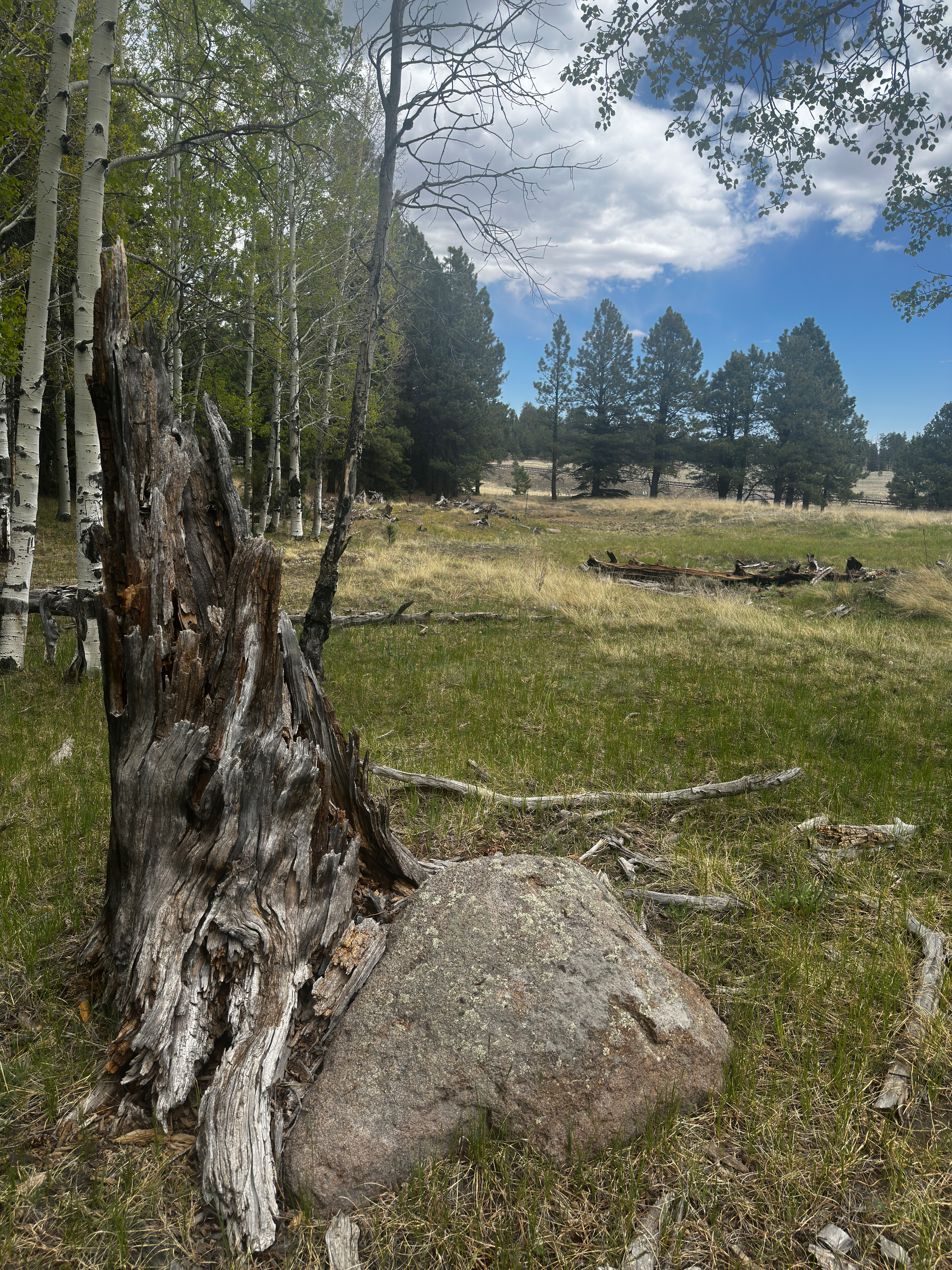
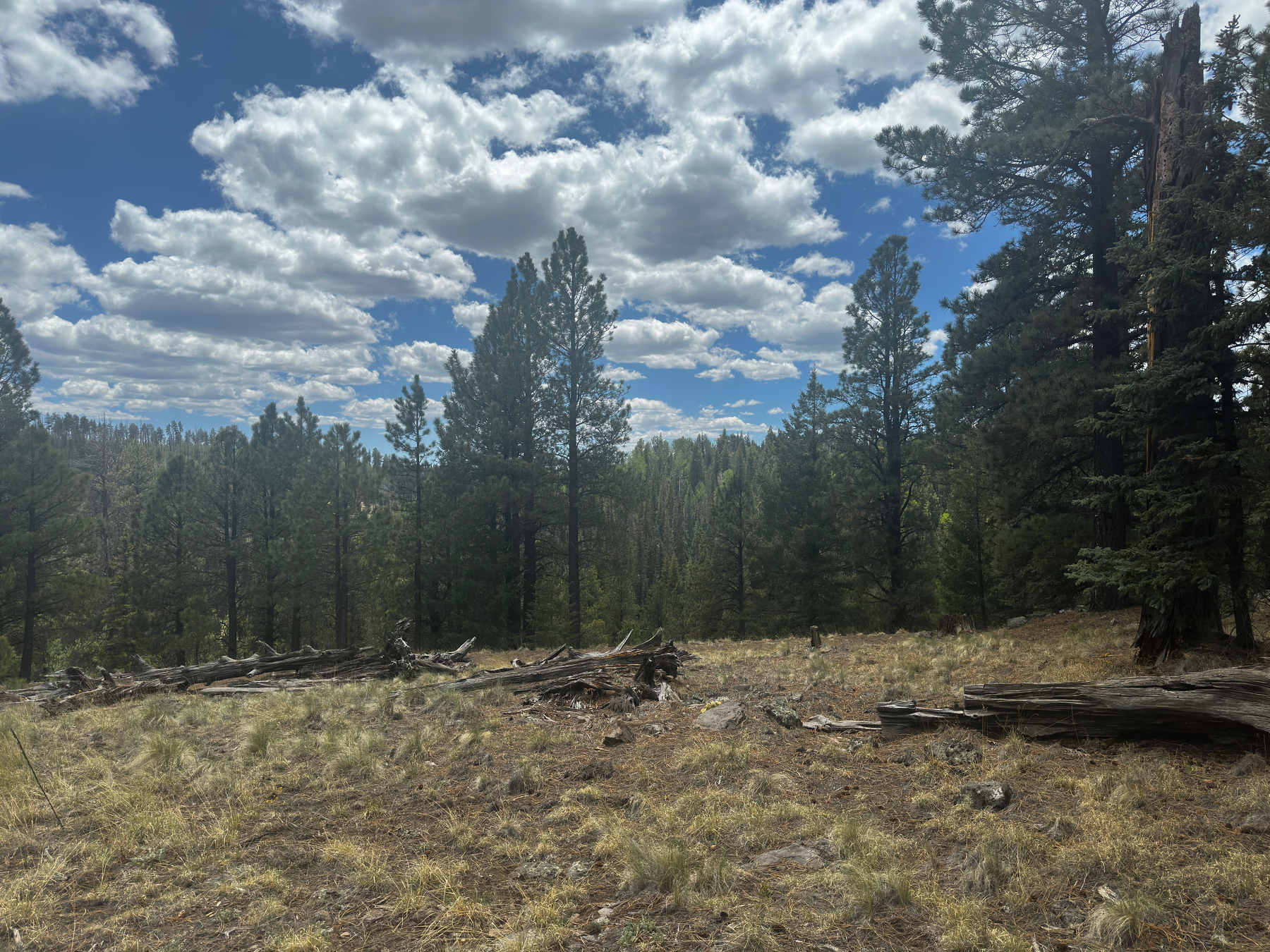
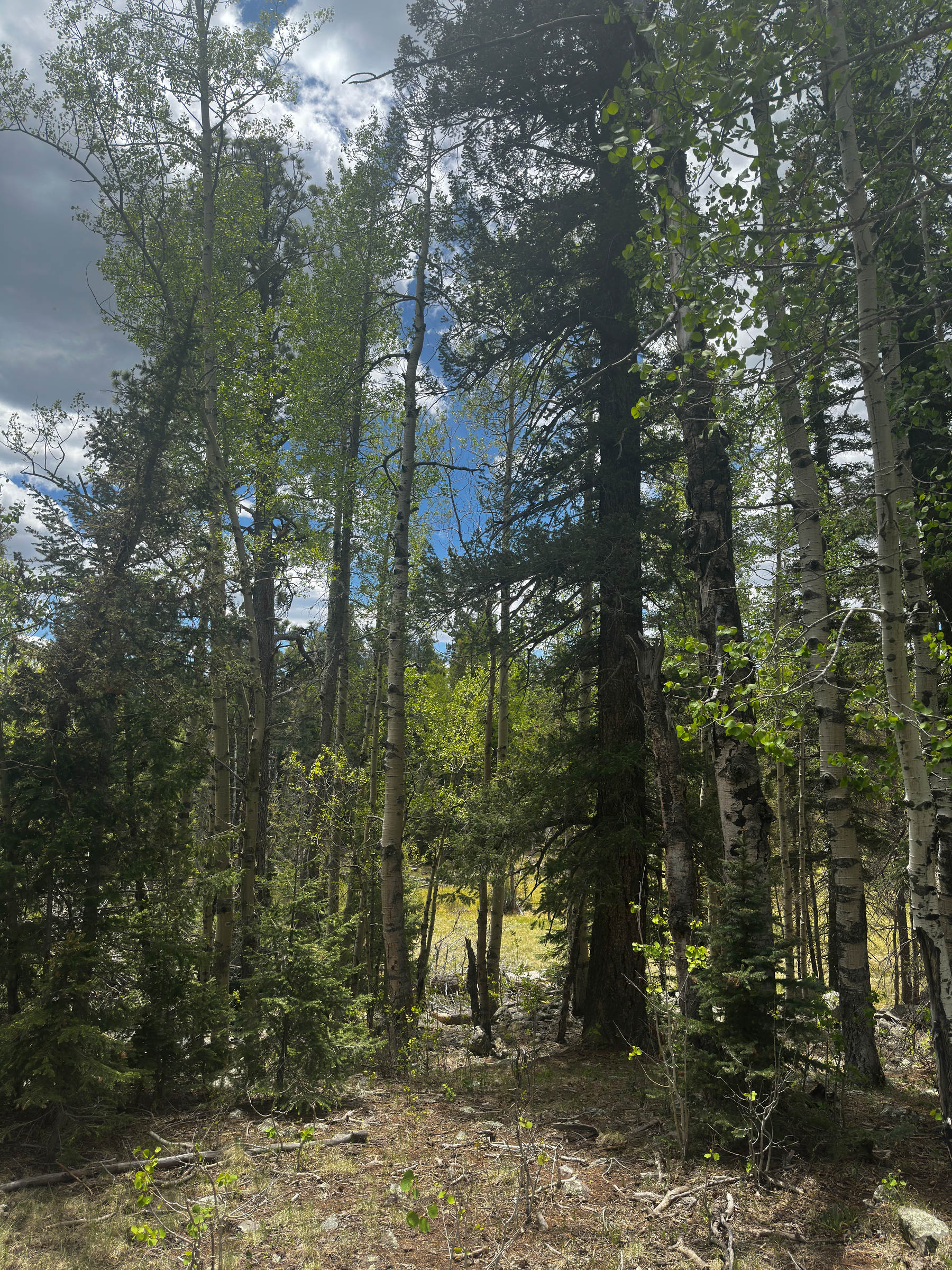
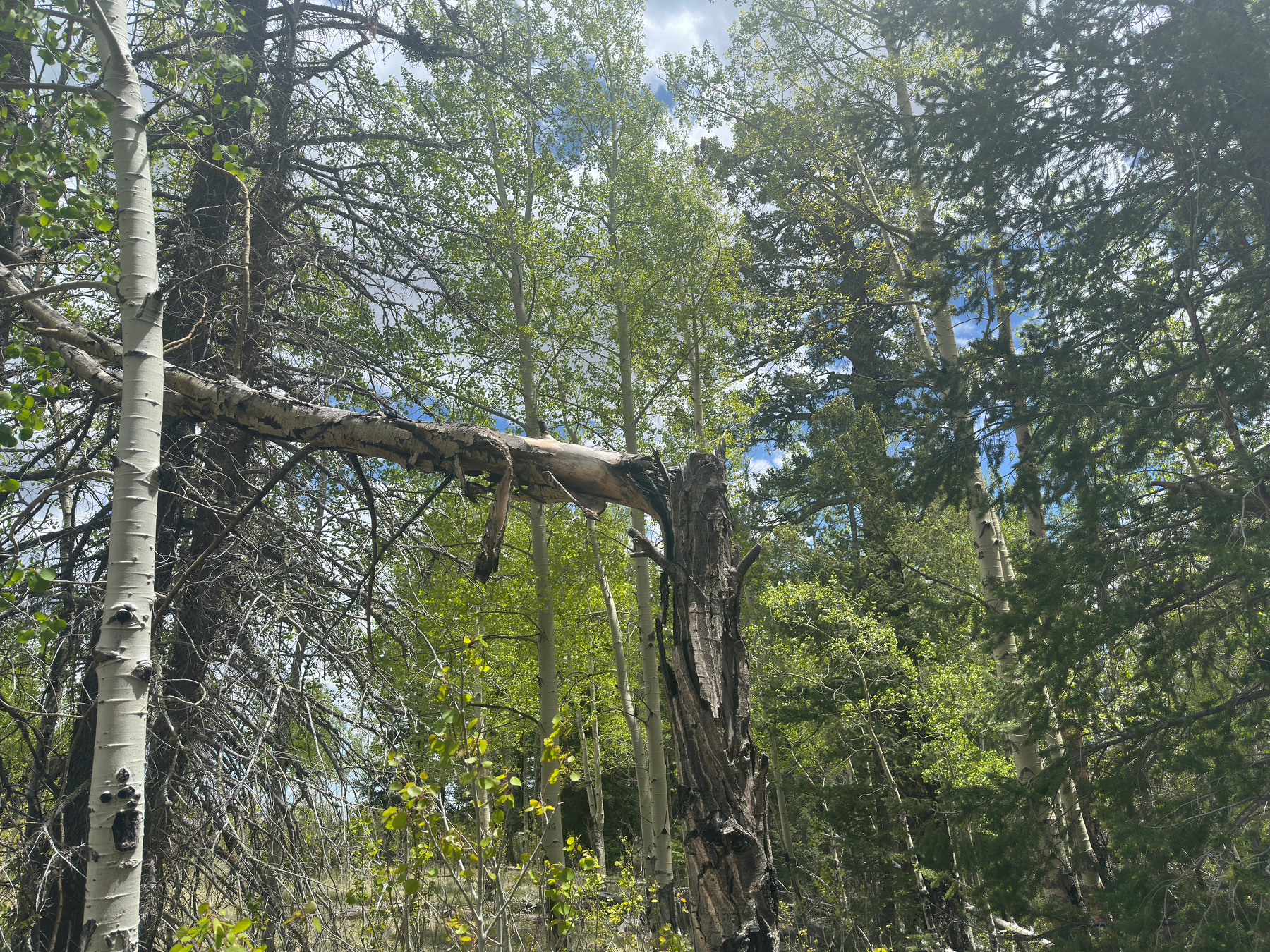
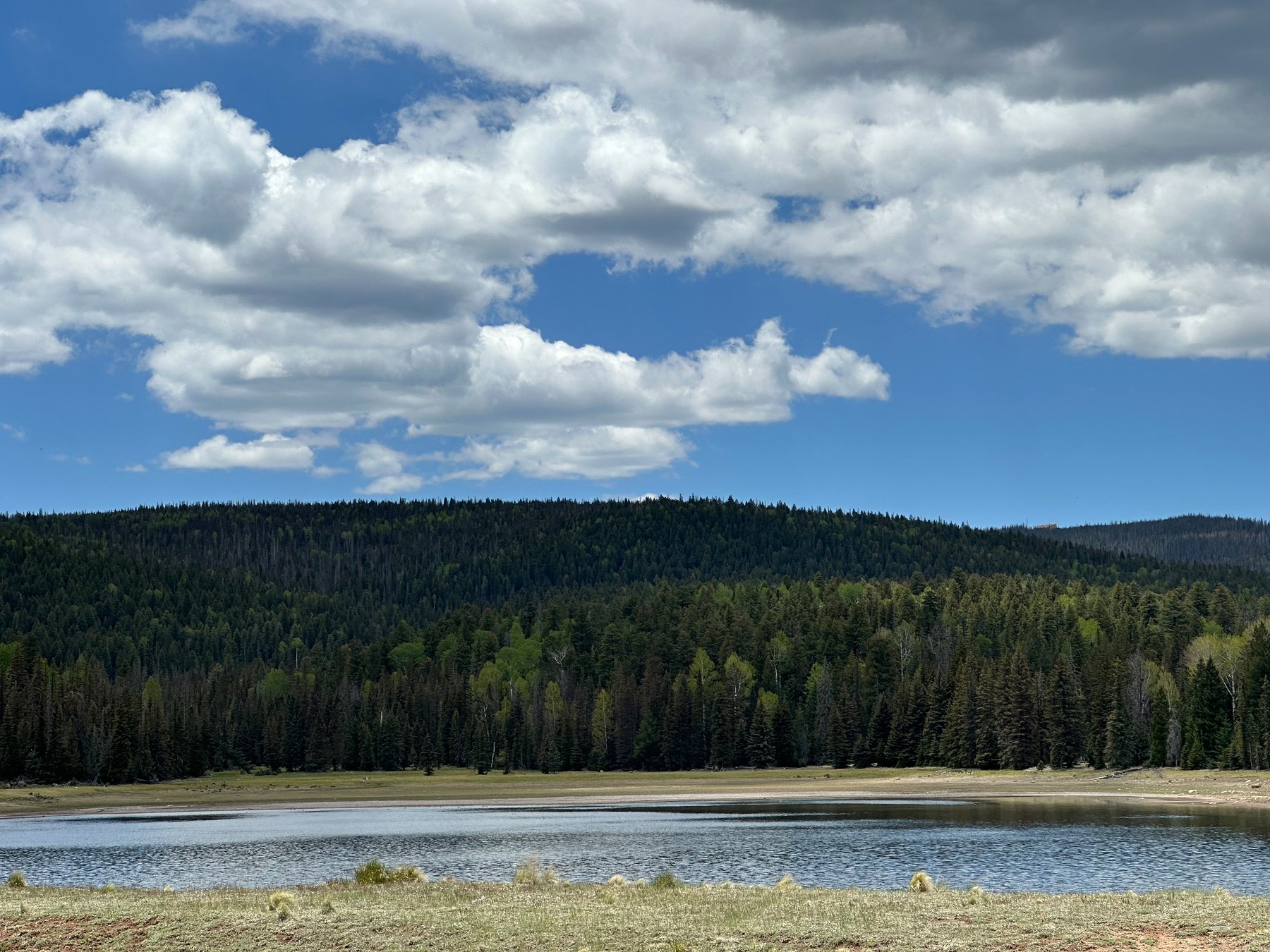
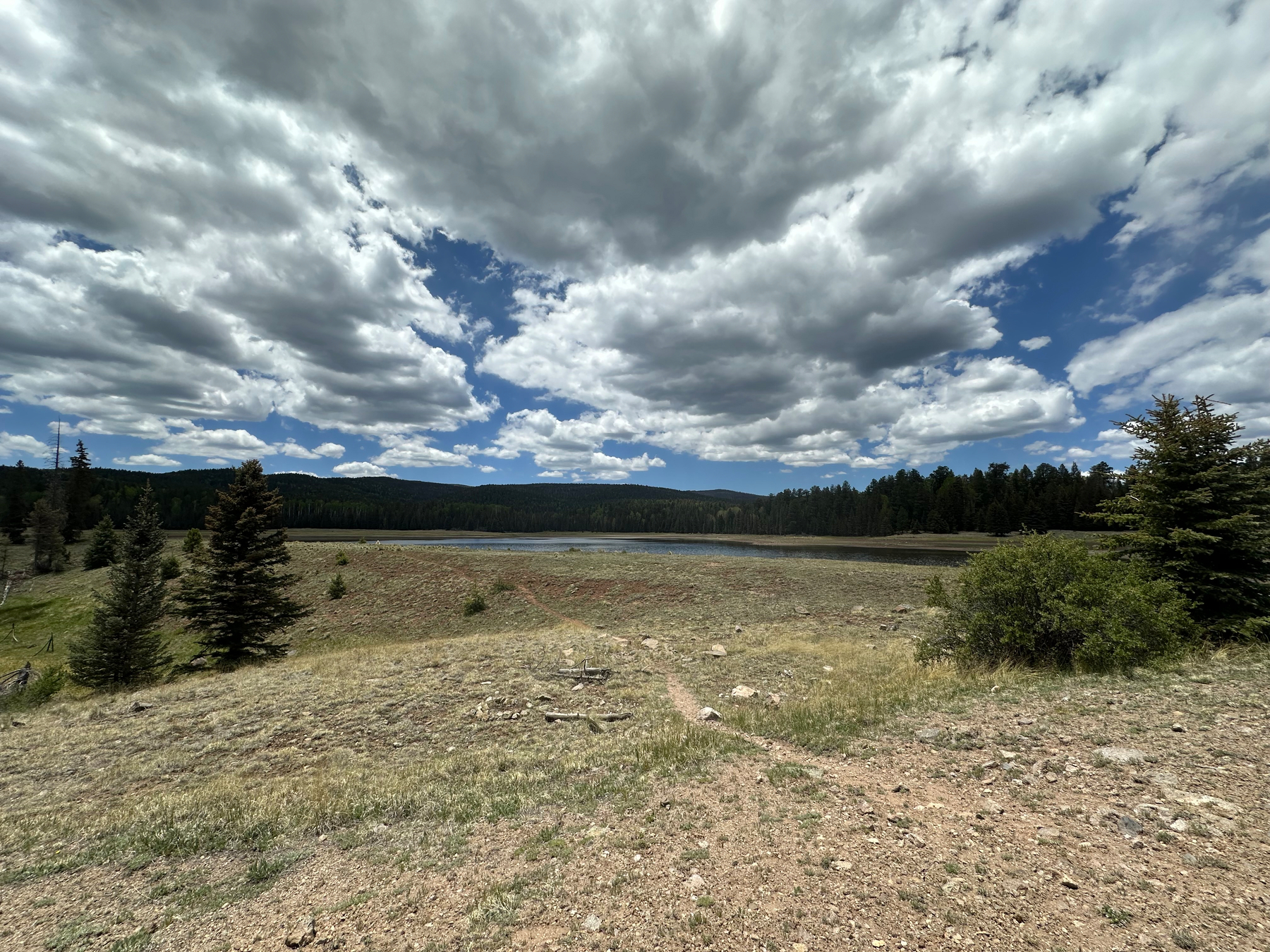
Went up into the high country today. Took some photos.



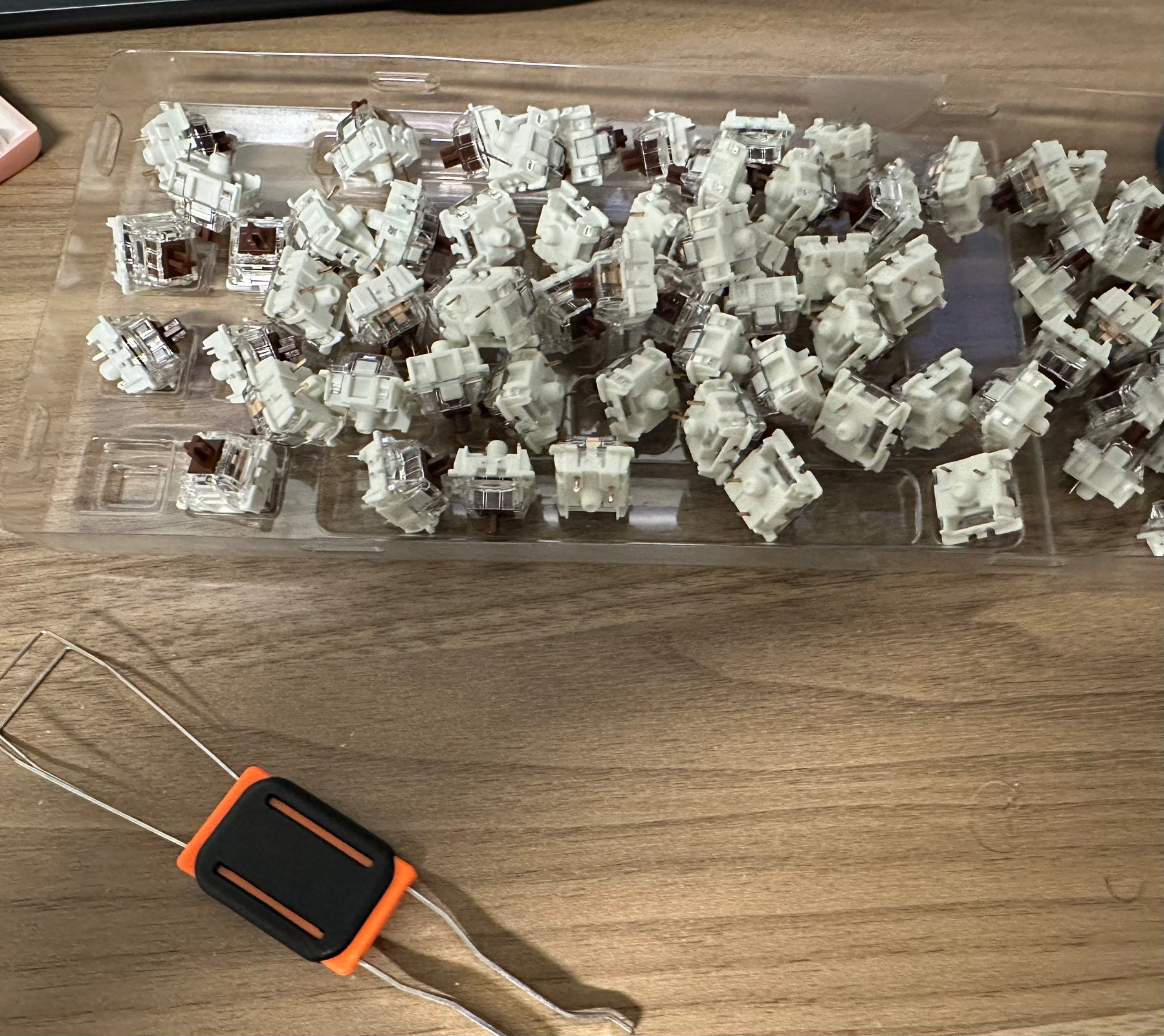
Swapping out some keyboard switches from my old keyboard to my new one. Need my browns. #mechanicalkeyboard

We saw a little bunny in our front lawn this evening.

I’m Grandpa again! I have a new grand baby in my family today. So excited!
Big news from Proton. They’re introducing post quantum encryption on accounts as an optional upgrade. Including free accounts. See their blog for details.
Super disappointed I wasn’t able to snag a Steam Controller today, I tapped faithfully for 45 minutes and never could get through. Oh well, guess I’ll save my money. #steam #steamcontroller
It’s a great day.
Wake up. You’re here.
Test photo
Hello World!
Earliest Childhood Memory
My earliest childhood memory. I’m not sure why I was wondering about this, but here it is!
I believe I was 2 or 3 years old when I was riding in my aunt’s car with both of her kids, my cousins, and my grandmother. We were going through the Salt River Canyon in Arizona at night, during a rainstorm, when there was a boulder in the road that caused my aunt to swerve and the car ended up on the road, upside down.
I remember this because I wasn’t in a car seat, in all honesty, I’m not sure anybody used them back then, but I wasn’t even buckled in. I was actually riding in the front seat on my grandmother’s lap.
Only my older cousin with us at the time had any injuries that I’m aware of. She got some glass in her face from a broken window. I remember us crawling out of the car through the back broken window and waiting with a good samaritan while waiting for emergency services to arrive.
That’s about all I remember. I know from the stories about it later that we were very lucky we didn’t go over the cliff on the right side of the road vs staying in the road as we would have all been killed. The other thing that was very fortunate was that no large semi trucks were coming down from the opposite direction at this time, as they would have easily hit us when they got to this blind corner.
open.ai
I really started hearing a lot about a new research preview of open.ai’s ChatGPT system over the last couple weeks, and I took a look at it finally a little.
I’m floored by what they’ve created here.
I’ve had a few little “coding” projects on my to-do list for a while now that mostly have still been sitting there because I just haven’t wanted to invest the time to research all the syntaxes and commands to perform the actions that I’ve been wanting my scripts to do. I decided to throw one of my ideas into the chat app by asking it to do the end result of what I wanted.
To my shock, it did it! It provided me the final code and even reasoning on why it did things and such. For me to use this script, I only would have had to make some very minor adjustments and I could have considered it done. This was way outside my expectations, especially for a “research project” preview.
Happy Thanksgiving 2022
Happy Thanksgiving!
I just wanted to reach out to whoever might be reading this that I hope you and yours all have a great Thanksgiving holiday!
I’m thankful for my wife who puts up with all my geeky crap and how excited I get over things like a new keyboard and the latest games. Who’s been with me now for 15ish years and who’s still with me! Someone who has tolerated me when I get grumpy or have bad days. I love you, honey!
I’m thankful for my daughter who also puts up with my silly antics and my shit (but who’s getting quite good at giving it right back), who helps us out at home by taking care of her precious kids (and my grandkids). I know you will continue to turn them into amazing little people while they grow up.
I’m thankful for my youngest son. Continue to be incredible, and I wish you all the best in whichever direction you choose to move forward. I feel you’re at a crossroads in your life and not quite sure which way you want to turn. Do what’s best for you.
I’m thankful for my oldest son. I’m proud of you for all you’ve accomplished, and I know you’ll do remarkable things after you’re discharged.
I’m thankful for my middle son. I hope someday things can be better again for you.
I’m thankful for my team at work, thank you for accepting me in my new role as you have and teaching me a thing or two. I can’t wait to continue this journey.
I’m thankful for my bosses, former and current. We’ve had ups and downs, but each of you has shaped me in ways it would be impossible to describe. In the future, we’ll strive to have many more ups than downs. :)
New Career Shift
Career Shift
In October, I had an opportunity come along to shift my career a bit, and I embraced it fully. I was presented with a chance to take on a management position within our IT department, and now I’m managing a wonderful team of IT professionals, and I’m excited to go to work every day. Everybody has moments in their lives and careers where they wonder what they’re doing and if it’s still the right thing for them. To be perfectly honest, I was at this point this year.
However, now that I’ve been in my new role for the last six weeks or so, I can say that I’m loving it. The group I’ve been assigned to manage is great. They’re all knowledgeable, they work hard, and they never hesitate to take on the tasks given to them.
I’ve learned a lot since taking on this role, and I’m super excited to continue down this new career path.
#career
Presenting to the World
It’s Time!
That’s right, it’s time to now present your new site to the world! In our last post, we got to publish the site using Cloudflare but the default URL is very much not user-friendly. We can correct this if you own a custom domain you’re wanting to use for your website.
-
From where we left off last time, click the “Custom Domains” option.
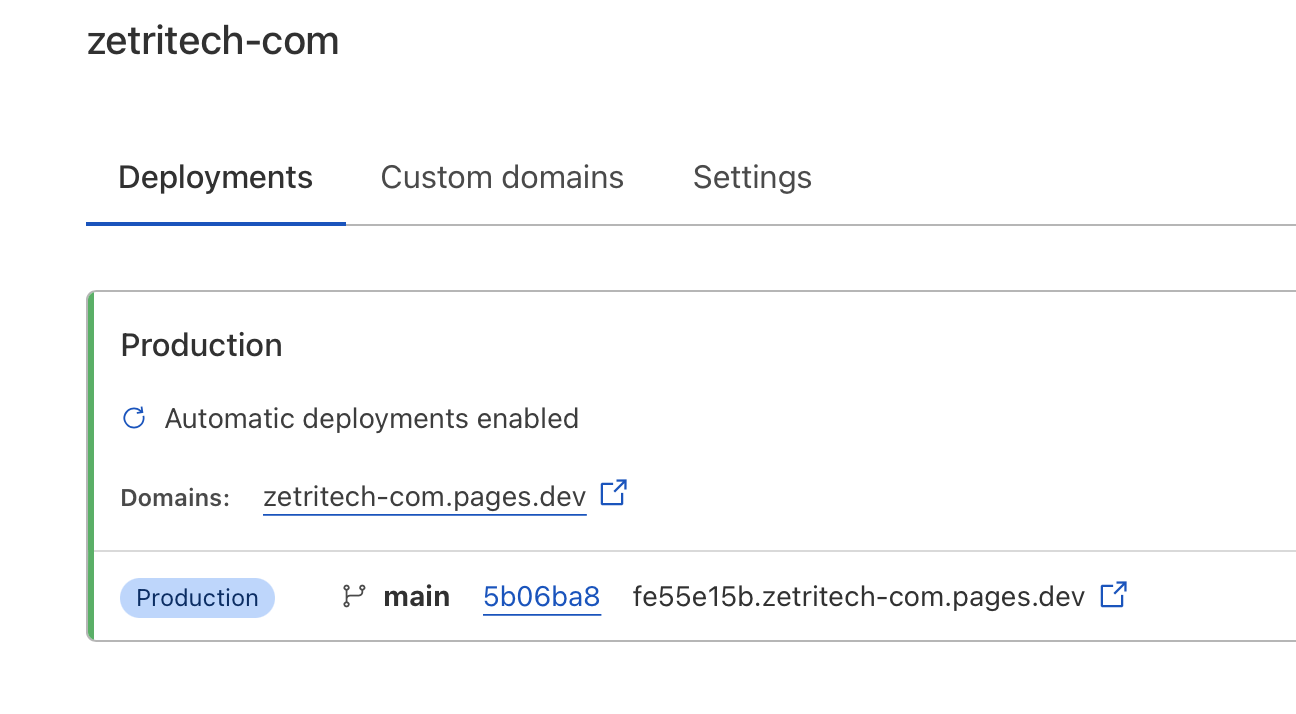
Custom Domain - Fig.1 -
Click on “Set up a custom domain”
-
Type in your domain name
-
This section will now vary depending on how your domain is set up. You’ll want to follow Cloudflare’s instructions at this point.
-
Once finished, which CAN take up to 48 hours, will end with your new site being accessible at your own domain name!
Now all you have to do is continue to create content!
Every time you do a hexo new post "Name here" on your machine, edit the new markdown file with your content, commit and push/publish Cloudflare will automatically publish your new site and generate your index pages and tag pages.
–MrDigital
Where to Host
Deciding where to host
This is going to be a pretty important decision on where you’d like your website to live. At this point you have your framework, your new repo and your ready to create content.
You have several free (for hobbyists, personal sites) or very cheap options. I’ll list a few but we’ll focus on a single one for our demo purpose.
There are more but you can research those options on your own if you’d like something different.
Today we’ll be using CloudFlare Pages.
Before we get too far ahead of ourselves, did you “Commit” and “Push” your new first post you made in the last post? In our example it was “Hello World”.
If you didn’t, you’ll want to do that first.
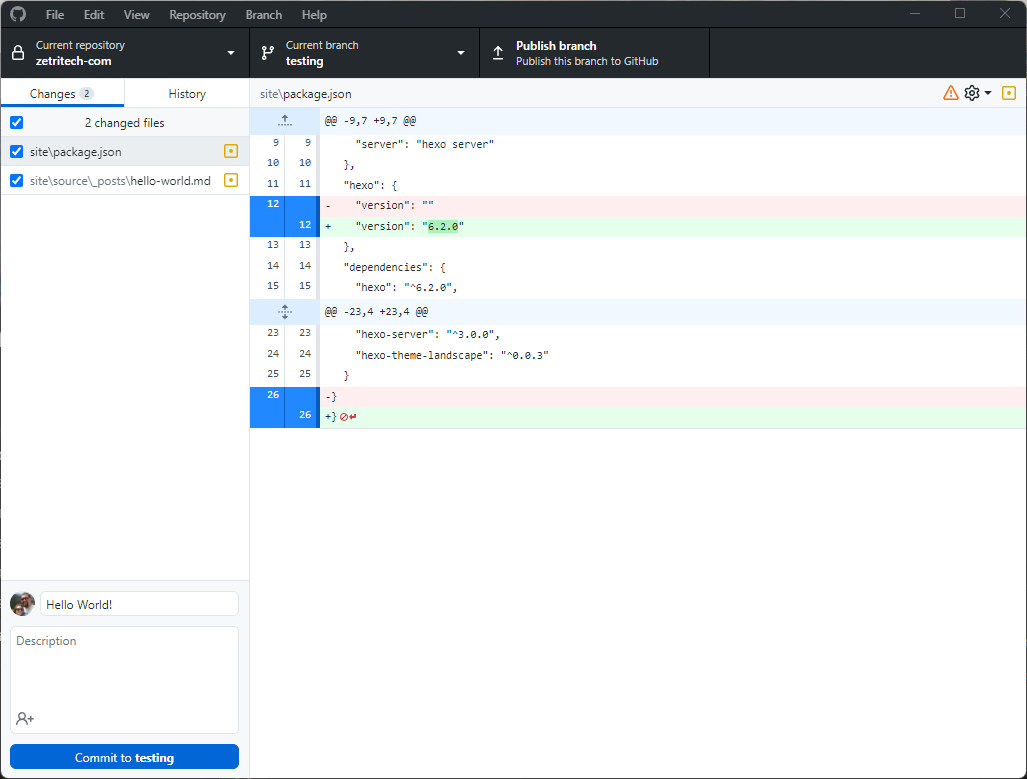 |
|---|
| Commit |
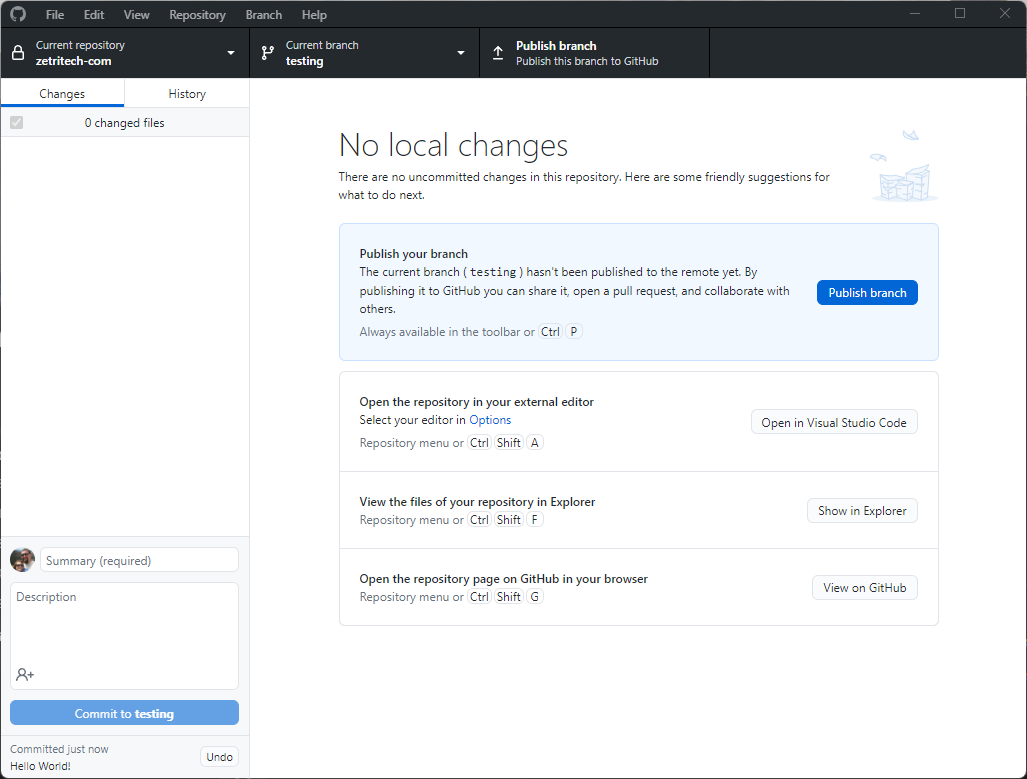 |
|---|
| Publish/Push |
Time to create a FREE account at Cloudflare pages. I’ll wait.
-
Once you are signed into your new Dashboard, click “Pages” on the left and we’re going to “Create a project” and “Connect to Git”.
-
You’ll need to go through the process to connect Cloudflare to your GitHub account.
-
Select your repository, in my example it’s zetritech-com and then Begin Setup
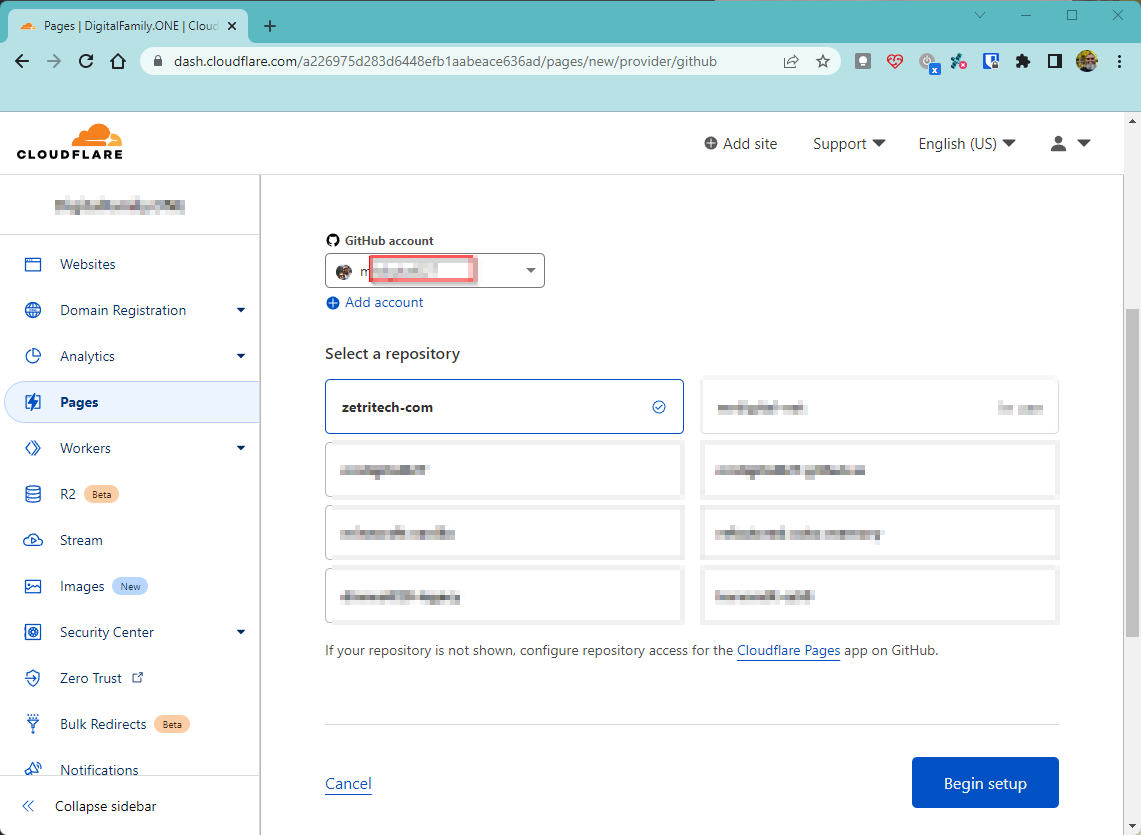
Repo and Setup -
Give it a name, pick a branch (likely main) and then scroll down to Build settings:
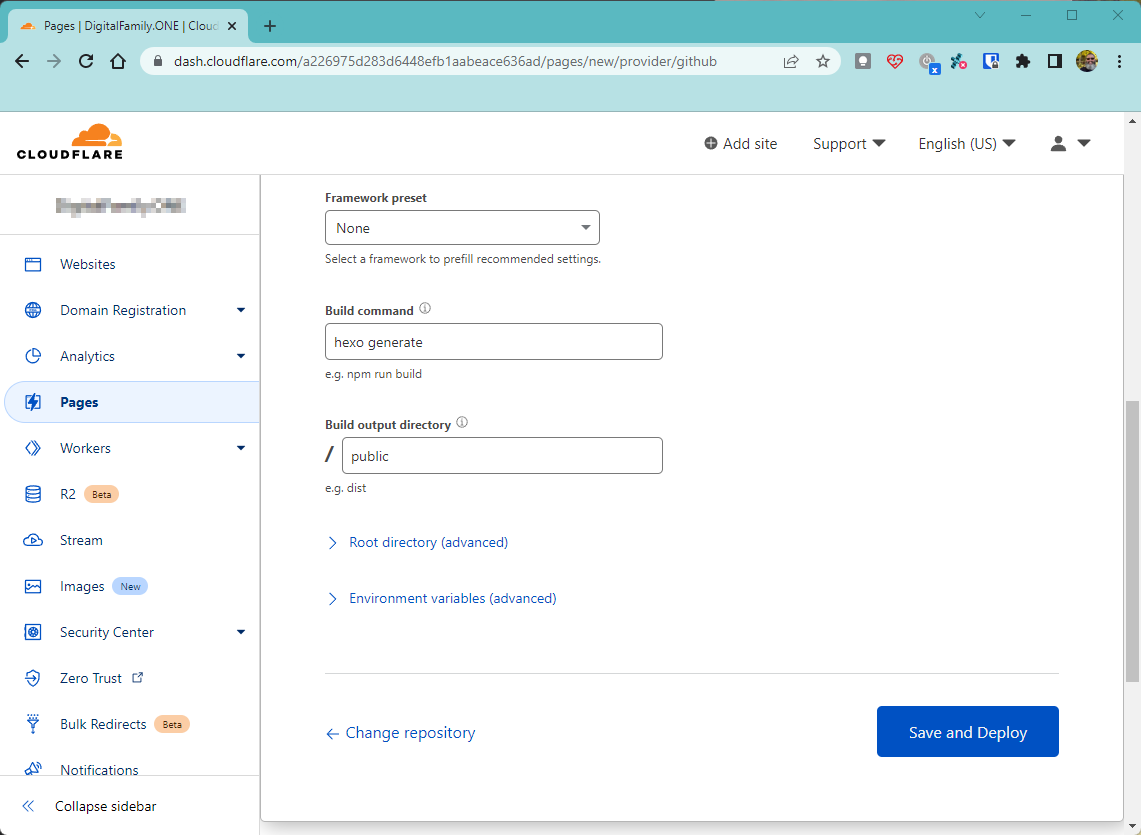
Build settings -
For Hexo, you’ll want the Build Command to be
hexo generate -
Build output directory to be public
-
Click Save and Deploy
-
If everything went as it should you should have been given a link, which right now isn’t very user friendly but it should work!
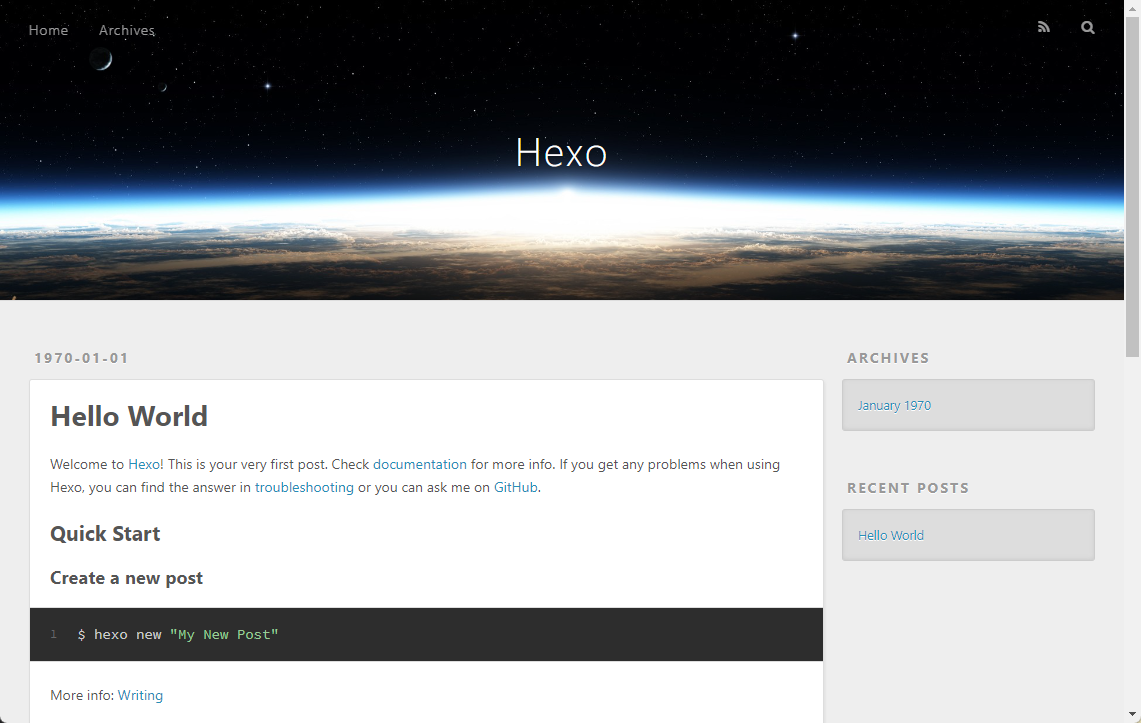
Look, a site!
We’ll get into some more details on next steps in the next post!
–MrDigital
Creating Content
It’s time to create content!
Now that you have your repo, your framework installed locally on your computer and your immediatly required software ready to go, it’s time to start making content!
From your terminal window you can now just type in the following command to create your first blog entry!
hexo new post "Hello World"
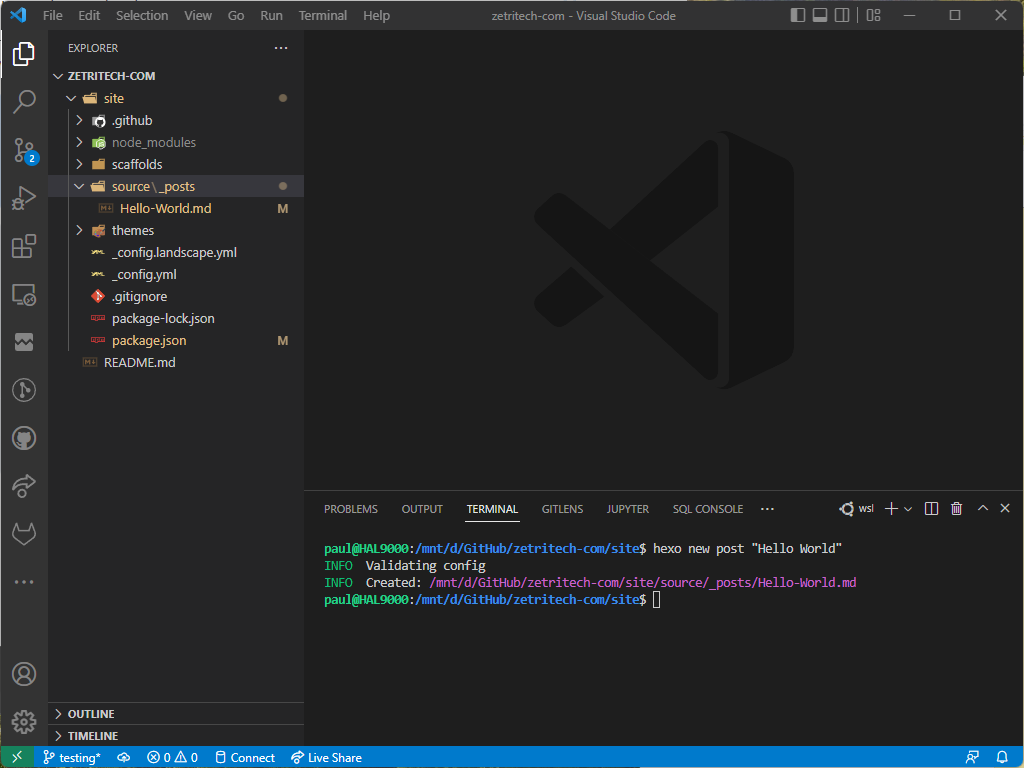 |
|---|
| First Post! |
You can now just click on the new Hello-World.md page on the left side under /source/_posts and create whatever content you wish in the Markdown format.
Just to give a small sample, this is what this page looks like so far in this language:
---
title: Creating Content
comments: true
date: 2022-07-25 23:35:21
tags: [blog,websites,hexo-tutorial]
---
## It's time to create content!
Now that you have your repo, your framework installed locally on your computer and your immediatly required software ready to go, it's time to start making content!
From your terminal window you can now just type in the following command to create your first blog entry!
```
hexo new post "Hello World"
```
||
|:--:|
| *First Post!* |
You can now just click on the new Hello-World.md page on the left side under /source/_posts and create whatever content you wish in the [Markdown](https://l.mr7.one/bay6) format.
Just to give a small sample, this is what this page looks like so far in this language:
You can see that is really is a pretty human readable format and the link above is a great starting off point. You can do this directly here in the Visual Studio Code app or use something else, even online apps like StackEdit can be very useful.
After you get your first page finished, even if it’s just Hello World!, we will move on to finding a host to actually present your page online!
–MrDigital
First Steps
We’ll assume you’re using a Windows PC
- There is some software that I personally use and recommend, they are all free and well established. Things to manage your local GitHub repository and for editing files
Now you can go about setting up your local environment a few ways but first we need to get your GitHub repository downloaded to your local PC.
- Go to GitHub and set up a new account if you don’t already have one. You’ll be wanting to create a new Repository or use one you’ve already made for this purpose.
-
You’ll have a drop down option under the green “Code” button to open with GitHub Desktop, this is the easiest way

Open with GitHub Desktop -
GitHub Desktop will ask you where you want to save the repo etc, just make sure you know where it is as we’ll be referring back to this later. I’ll be using “D:\Github\reponamehere” as an example
-
Now that we have your new empty website repository downloaded to your PC we need to actually get some software installed (yes, more) to get the website structure in place, remember we’ll be using Hexo for our demo.
-
So here is where things start to get a bit more technical and we’ll be referencing to the “terminal” and “command line” a bit.
-
We need an elevated powershell terminal to run the following command so you can usually just right click your Start menu and click PowerShell (Admin).
-
We’ll be installing Microsoft’s Windows Subsystem for Linux as I find it much easier to run all the commands and programs we’ll be using for the website environment. Full documentation can be found at the Windows Subsystem for Linux website. If the below commands fail, you’ll have to investigate this issue and resolve it.
NOTE if you are running Windows 11 you can skip to step 10 and install it directly via the Store.
wsl --install``
-
You should see several items download and install and finally it says the changes will take affect on next reboot. Reboot before we continue and get back into GitHub Desktop and Visual Studio Code
-
After reboot the system will have you finish the Linux install.
-
Open the Microsoft Store and search for Ubuntu, we actually need the 22.04 version (as of this writing, 07/23/2022).

Ubuntu 22.04 -
The easiest way moving forward is to just work inside the Visual Studio Code app so with your new repo open in GitHub Desktop you can just click the “Open in Visual Studio Code” and we’ll start there.

Open in Visual Studio Code -
With Visual Studio Code open this is the layout you’ll see on a fresh repo:

Fresh Repo -
We want to open a terminal so hit CTRL + ` or click the Terminal menu and click New Terminal
-
With the terminal open you’ll see a little + with down arrow, click this down arrow and select your new Ubuntu environment:

Ubuntu WSL -
In the new Ubuntu $ prompt you’ll have below we need to install a couple modules to power our new Hexo environment. Run each command in the terminal window. The commands explained:
- the first two commands, apt update and upgrades fetches the latest package directory from the internet and installs them.
- nodejs is the JavaScript runtime engine.
- npm is essentially the online repository of packges we can install.
- hexo-cli is the actual Hexo engine we need.
sudo apt update
sudo apt upgrade
sudo apt install nodejs
sudo apt install npm
sudo npm install hexo-cli -g
``
-
You can now verify you have hexo installed by using the following command
hexo -v``
-
You’re ready to initialize your new site!
-
From terminal run (where ‘site’ is the folder you want)
hexo init site``
-
You’ll now see a whole bunch new files after a short install bar show up on the left explorer tab of Visual Studio Code

Files List -
Our next post will talk about actually creating content!
-
I’d recommend committing your current site in GitHub Desktop and PUSHing it up to the cloud for a backup, we can always revert back to this state if needed.

Commit and Push 
–MrDigital
Life is Busy
Sorry folks!
I just wanted to do a quick post to apologize for what seems like an unfinished series of posts about hosting and blogging. You would be correct. I just have been a little busier in real life where I haven’t been able to write the documents I’ve really been wanting to.
I am really going to try to get some more written this week. Stay tuned!
–MrDigital Email me here or comment below.
Researching a Static Site Generator
The research I’ve done and found for a static site generation system
I’ll start out by saying that for years I’ve been a proponent of Wordpress. It’s an end user friendly system that allows for a tremendous amount of freedom for users who might not know all the ins and outs of how to host and manage a website’s back-end. There is nothing wrong with that. It’s made it very easy for clients to publish blog posts with minimal technical know-how.
I’ve gone down the rabbit hole of a static site generator after really taking a look at what I do on my own websites, which I’ve also run using Wordpress powered systems, and the results were…not much. I don’t do anything that is considered dynamic on my sites. They’re really just a series of static pages that don’t change unless there is a text edit or something needing to be added to that particular post or page.
So that brings me to what that means.
A static site generator, is simply an application framework that can be quickly and easily used to generate all those HTML files that you may have been writing in the past manually or that WordPress’s WYSIWYG editor has been creating for you. What makes it really great though is they require absolutely no huge amount of running resources on a server. No database, no logins etc. Just clean simple web pages.
When I started this journey I was a bit overwhelmed by all the possible ways to do it so I narrowed down my focus by picking where I wanted the final pages to live and see what they supported. Some quick and easy options that are very low cost or maybe even free depending on your usage, and I’ll get to these later again when we reach that point.
There are a number of systems that can be used, which I will list but just a few here but for the purposes of these entries I will be focusing on Hexo as that’s what this site is being built on.
| Name | Website | Tagline |
|---|---|---|
| Hexo | [https://l.mr7.one/hexo] | A fast, simple & powerful blog framework |
| Jekkyl | [https://l.mr7.one/jekkyl] | Transform your plain text into static websites and blogs. |
| Hugo | [https://l.mr7.one/hugo] | Hugo is one of the most popular open-source static site generators. |
This is where things start to get exciting. My next entry will be on the First Steps on getting your journey started and some of the hurdles you’ll have to consider, beyond just picking a framework to build with.
—MrDigital
[]: https://l.mr7.one/hexo []: https://l.mr7.one/jekkyl []: https://l.mr7.one/hugo